How To Run A Local LLM On A Mac Studio: Setup, Model Sizing And First Prompt
There is a particular quiet in a room where a language model is answering questions and no network cable is involved. No spinner, no "contacting server"...
There is a particular quiet in a room where a language model is answering questions and no network cable is involved. No spinner, no "contacting server", no terms of service to accept. Just a fan that occasionally clears its throat. That quiet is the reason people buy a Mac Studio and then spend an evening in Terminal.
The Mac Studio is an odd machine in the best sense. It is a small aluminium box with a lot of memory and a GPU that shares that memory with the CPU. Apple's Mac Studio Technical Specifications page lists configurations running from 32GB up to 192GB of unified memory, depending on the chip. For language models, that number matters more than almost anything else.
Running a model locally means the weights live on your SSD and get loaded into that shared memory. The GPU reads them directly, because on Apple silicon there is no separate video memory to copy into. Apple's developer documentation on unified memory describes this arrangement plainly: the CPU and GPU address the same pool. It is the single fact that makes the whole exercise practical.
This guide walks the sequence in order. Confirm the hardware, pick a runtime, download a model sized to your memory, launch it, and check that the output is real. Two runtimes get the most attention here, Ollama and llama.cpp, because both are open source and both work on Apple silicon. Neither is the only option, and neither is right for everyone.
The Box That Shares Its Memory
Start with what you actually own. macOS will tell you, and it will tell you more reliably than the box or your memory of the order. Open Terminal and run system_profiler SPHARDWAREDATATYPE. The output names the model identifier, the chip and the total memory. Write those three things down before you download anything.
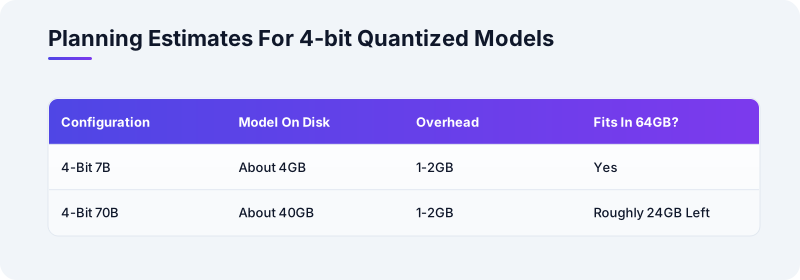
The reason to bother is that model sizing is arithmetic, and the arithmetic depends on that memory figure. The dossier's rule of thumb is that a quantized model needs roughly its file size plus 1 to 2GB of overhead in unified memory. A 4-bit quantized 7B model is about 4GB on disk. A 4-bit 70B model is about 40GB. Those are background figures rather than measured benchmarks, so treat them as planning estimates.
Unified memory changes the shape of the problem. On a machine with a discrete graphics card, you worry about video memory separately from system memory, and the model has to fit in the smaller of the two. On Apple silicon there is one pool. Apple's developer documentation describes the CPU and GPU sharing it, so a large model can occupy memory the GPU reads directly.
That does not mean the pool is infinite or free. macOS itself needs room, and so does everything else you have open. The practical ceiling for a model is meaningfully below the printed number. A 32GB machine is not a 32GB model machine, and a 192GB machine is not a 192GB model machine either.
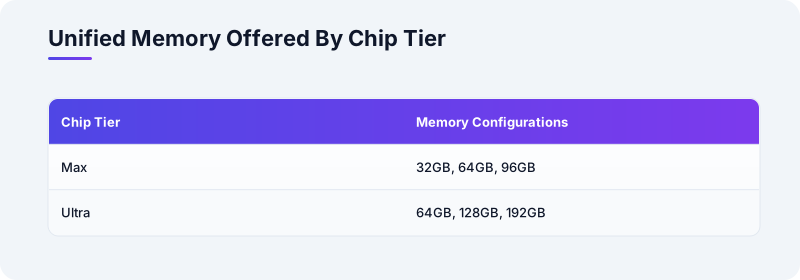
The configurations in Apple's specifications split roughly in two. The Max-tier chips offer 32GB, 64GB or 96GB. The Ultra-tier chips offer 64GB, 128GB or 192GB. That spread is the whole reason the Mac Studio has a reputation among people who run models at home. It is one of the few desktop machines where a very large model can sit in memory without a data-centre budget.
One caution before you plan around it. Bigger memory lets you load a bigger model. It does not guarantee that model is better for your task, and it does not guarantee speed. Those are separate questions, and the honest answer to both is that you find out by running something.
Two Runtimes, Two Temperaments
Ollama and llama.cpp are the two names you will keep meeting, and they are related in a way that is easy to miss. Ollama is an open-source runtime that bundles llama.cpp underneath and wraps it in a command-line tool and a local server. The Ollama GitHub repository is the place to check current behaviour rather than any guide, including this one.
llama.cpp is the engine itself. It is an open-source C and C++ inference project, and on macOS it is built with Metal support so the GPU does the heavy lifting. The llama.cpp GitHub repository documents the build flags. If you want to understand what is happening rather than just watch it happen, this is the layer to look at.
The practical difference is friction. Ollama installs from a download at ollama.com or with brew install ollama, then pulls models with ollama pull <model>. You are running a prompt within minutes. llama.cpp asks you to build it with CMake and manage model files yourself. That is more work and more control.
Model formats differ too. llama.cpp runs GGUF files, a format Hugging Face documents in its GGUF guide. Ollama manages its own model store and pulls from its own library by name. You can point Ollama at a GGUF file you downloaded, but the default path is the simpler one.
There is a third consideration: what you want to build. Ollama runs a local API on port 11434 by default, which means other software on your machine can talk to it like a service. llama.cpp ships a server binary too, launched with ./build/bin/llama-server -m model.gguf --host 127.0.0.1 --port 8080. Both keep everything on the machine.
Neither is the only choice. Other runtimes exist, and the field moves. The two here are simply the ones with the most documentation and the widest use. Pick one, get a prompt working, and only then decide whether the other suits you better.
From Install To First Token
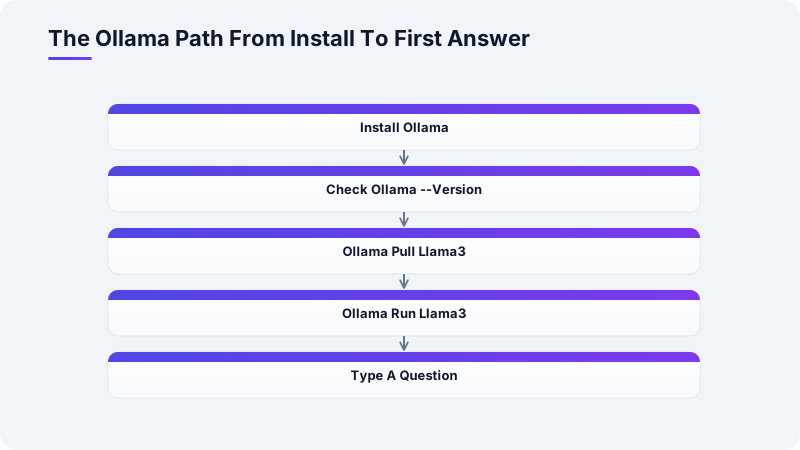
The Ollama path is the shorter one, so start there if you want a working prompt tonight. Install it from the macOS download at ollama.com/download/mac, or run brew install ollama if you use Homebrew. Then open Terminal and confirm the binary is present with ollama --version. That single check saves a lot of confused debugging later.
Pull a model sized to your machine. On a 32GB Mac Studio, something in the 7B to 8B range at 4-bit quantization is a sensible first attempt. The command is ollama pull llama3, though the exact model name should come from the current Ollama library rather than from memory. The pull downloads weights to disk, so give it time and watch the progress.
Then run it. ollama run llama3 opens an interactive prompt in the terminal. Type a question and press return. If text comes back that responds to what you asked, the model is loaded and inferring locally. There is no account, no key and no network call involved in that exchange.
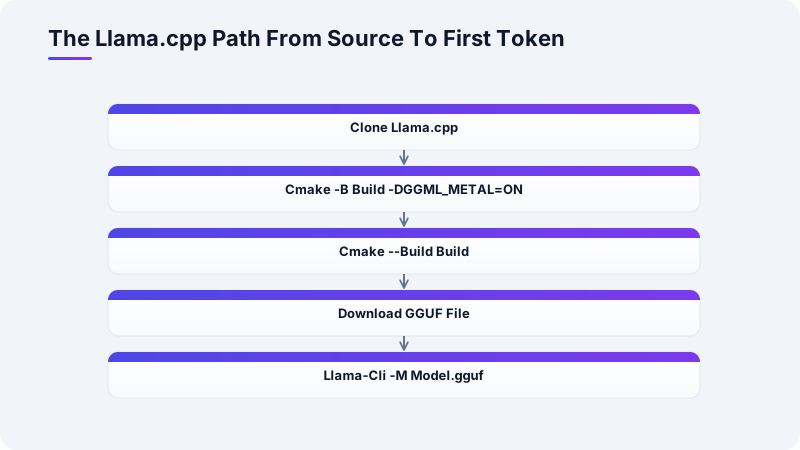
For the llama.cpp path, clone the repository and build it. The dossier gives the CMake invocation as cmake -B build -DGGML_METAL=ON, which enables Metal so the GPU is used. Then build with cmake --build build --config Release. The Metal flag is the one that matters on a Mac Studio. Without it you are running on the CPU and wondering why it is slow.
Download a GGUF file next. Hugging Face hosts them, and its models-downloading documentation covers the tooling. The dossier names repositories such as TheBloke and bartowski as common sources. The command form is huggingface-cli download <repo> <file>, or curl -L -O <url> for a direct link. Check the file size before loading it.
Then launch inference. The dossier's example is ./build/bin/llama-cli -m model.gguf -p "prompt". If output appears and addresses the prompt, the build works. A few things to check if it does not:
- Confirm the GGUF file finished downloading; a truncated file fails to load.
- Confirm the build used
-DGGML_METAL=ON; a CPU-only build is dramatically slower. - Confirm the model file path is correct; a typo here produces a load error, not a wrong answer.
- Confirm you have free memory; a model larger than the pool will fail or swap heavily.
Sizing A Model To The Memory You Have
The arithmetic is the part people skip, and it is the part that decides whether the evening goes well. Take your total unified memory, subtract what macOS and your open applications need, and treat the remainder as your budget. The dossier's rule of thumb is file size plus 1 to 2GB of overhead. That overhead covers the runtime, the context and the working state.
Quantization is the dial that makes this manageable. A 4-bit quantized model stores its weights in roughly a quarter of the space of a full-precision version. That is why a 4-bit 70B model lands near 40GB rather than well over 100GB. The trade is some loss of fidelity, the exact size of which depends on the model and the quantization method.
Context length is the second dial, and it is easy to forget. Ollama's default context window is 2048 tokens, per the Ollama Modelfile documentation. That is modest. Raising it with the num_ctx parameter in a Modelfile or through the API increases memory use, because the context has to be held alongside the weights. A long context on a large model can push you over the edge.
A worked example makes it concrete. Suppose you have a 64GB Mac Studio and want a 4-bit 70B model at about 40GB. That leaves roughly 24GB for macOS, applications, context and overhead. It may fit. Now suppose you have 32GB. The same model does not fit comfortably, and you should be looking at the 7B to 8B range instead.
The honest caveat is that these are planning figures, not measurements. The dossier's numbers are background estimates. Real memory use varies with the runtime, the context length and the model architecture. The only reliable test is to load the model and watch what happens to memory pressure.
Watching The Machine While It Thinks
macOS gives you a straightforward instrument for this. Activity Monitor's Memory tab shows memory pressure and swap usage. Memory pressure is the more useful of the two, because it reflects whether the system is struggling rather than just how much is allocated. Green means comfortable. Yellow and red mean you have overcommitted.
Swap is the number to fear. When unified memory fills, macOS moves pages to the SSD. A model that spills into swap will still run, technically. It will also slow down in a way that is obvious and unpleasant. If you see swap climbing during inference, the model is too large for the configuration or the context is too long.
For the llama.cpp path, the -ngl flag controls how many layers are offloaded to the GPU. The dossier notes that llama.cpp exposes this flag to set the layer count. Offloading more layers uses the GPU and generally speeds things up, but it also increases memory pressure. If a model fits on paper but swaps in practice, reducing the offloaded layers is one lever.
Performance factors beyond memory are worth naming without pretending to benchmark them. The chip generation matters, the number of GPU cores matters, and the quantization level matters. So does context length, because longer contexts mean more computation per token. This article will not quote tokens per second, because the dossier carries no measured figures and inventing them would be worse than useless.
What you can do is measure your own machine. Time a fixed prompt and a fixed output length, then change one variable and time it again. That gives you a number that applies to your hardware and your model. It is more useful than any published benchmark, because it is the only one that describes the machine you are actually sitting in front of.
When The First Attempt Fails
Most setup failures are boring, and most are diagnosable from the error message. A model that will not load is usually a truncated download or a path typo. A model that loads but produces nonsense is usually a mismatched file or a corrupted one. A model that loads and then stalls is usually a memory problem. Read the message before changing anything.
The most common performance complaint is that everything is slow. On the llama.cpp path, the first suspect is a build without Metal. Rebuild with -DGGML_METAL=ON and compare. On the Ollama path, the usual cause is a model too large for the machine, which pushes the system into swap. Check Activity Monitor before assuming the runtime is at fault.
A second common complaint is that the model forgets the conversation. That is often the context window, not the model. Ollama's 2048-token default is small, and a long exchange will fall out of it. Raising num_ctx helps, at the cost of memory. This is the trade-off in miniature: every increase in capability has a memory price.
A third is that the model answers in a style you did not want. That is a prompting question rather than a setup question, and it is worth separating. The runtime is working if text appears. Whether the text is good depends on the model and the prompt. Do not debug a working installation because you dislike an answer.
Finally, keep notes. Write down the model name, the quantization, the context length and the commands that worked. When you try a different model next month, you will want to compare against something. A short text file in your home directory is enough, and it will save you from repeating an experiment you have already run.
A Takeaway You Can Act On
Before you download a single model, run system_profiler SPHARDWAREDATATYPE in Terminal and write down the total memory figure it reports. Then subtract 8GB for macOS and your usual applications, and treat the remainder as your model budget. Compare that budget against the dossier's rule of thumb of file size plus 1 to 2GB of overhead. If a 4-bit 70B model at roughly 40GB does not fit with room to spare, start with a 7B or 8B model instead.
That one check, done before the download rather than after, will save you an evening of watching swap climb.